If you haven’t used Winlator before, by default it will map entire screen as a huge laptop touchpad. Swiping on screen would move the mouse cursor displayed on screen, then tap on screen would trigger left click.
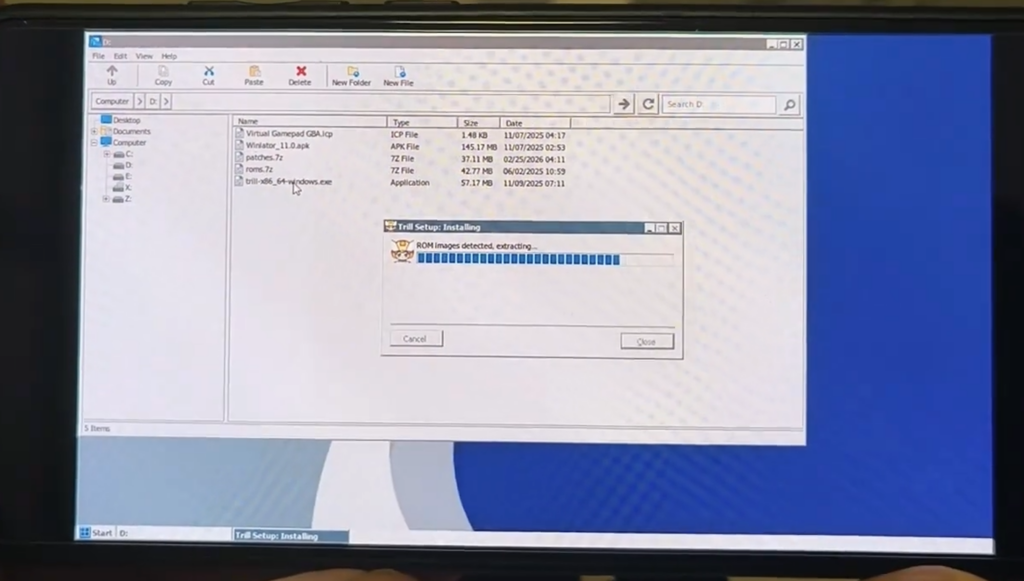
Double tap on the Drive D appeared in Winlator, then double tap trill-x86_64-windows.exe to install Trill. It will automatically detect ROM images (if exists) and community patches package and import them.
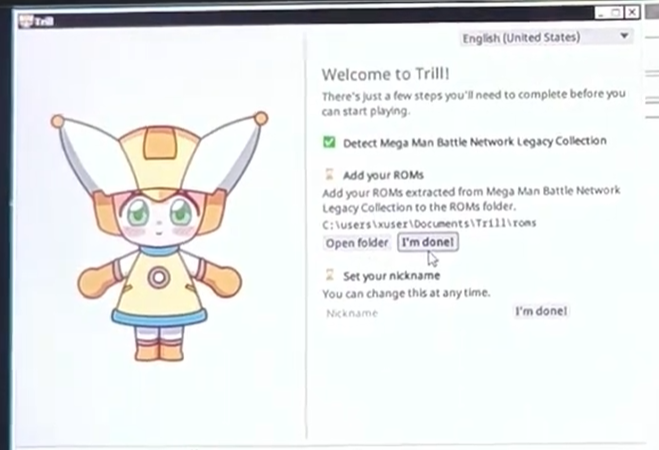
If Trill interface shows up, that means your Android device could run Trill properly. Now you can change Trill’s language by your preferences, and tap “I’m done!” button here to finish ROM importing. If you don’t have a PC to copy ROM images, see the extra step below.
If Trill crashes immediately, then you have selected either wrong Graphics Driver or your Android device cannot run Trill at ideal speed. VirGL would be your only option.
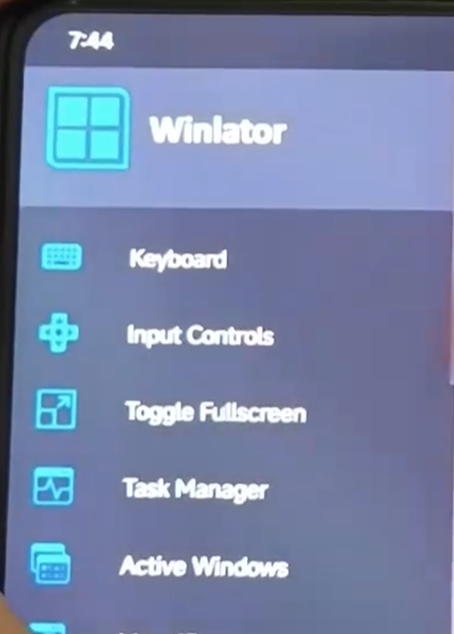
To get virtual keyboard, tap the “Back” button on your Android device (by either tapping it on navigation bar or swipe from left/right screen edge to inner), then choose “Keyboard”. We recommend you to enable floating keyboard when your device is displayed horizontally.
Once it enters Trill main interface, you could adjust the UI scaling ratio, UI color, and full screen by your preference.
Please purchase Mega Man Battle Network Legacy Collection from Steam with your Steam Mobile App. For safety reason, we strongly recommend you to enable Steam Guard.
Now you’re almost ready to NetBattle on the go.
Which game controller method do you prefer?